IBA ibaBM-DP Bus monitor for PROFIBUS
ibaBM-DP: Bus monitor for PROFIBUS
Connectors for 2 PROFIBUS lines up to 12 Mbit/s
Sniffer function for interference free acquisition of the cyclic master slave communication (DP-V0)
Up to 8 or 16* active slaves can be configured
Acquisition of up to 244 Bytes per active slave
Flexible configuration of sampling rate, data format and data volume
Support of ibaNet protocol 32Mbit Flex
Additional options for special fields of application: redundancy*-, simulation*-, mirror*-, mapping*- and P2P mode
Scope of delivery
After unpacking, check the delivery for completeness and possible damages.
The scope of delivery comprises:
ibaDAQ-C device
Covering caps for USB and Ethernet
2-pin connector with spring terminals (digital input, to initiate shutdown by UPS)
3-pin connector with spring terminals (voltage supply)
"iba Software & Manuals" data medium
Safety instructions
Intended use
The device is an electrical apparatus. It is only allowed to use the device for the following
applications:
Measurement acquisition
Applications with iba products (ibaPDA, and others)
The device must only be used as described in chapter 10 Technical data.
System requirements
Hardware
For operation
Power supply 24 V DC ± 10%, 1 A (when connecting 2 USB devices, e. g. hard
disks)
For device parameterization and operation
Monitor (connection to DisplayPort), mouse and keyboard (connection to USB
ports)
or

ibaPDA client via network link
Mounting on a DIN rail
1. Insert the DIN rail clip on the rear side of the device on top in the DIN rail, push the
device down backwards and let it lock into the DIN rail. If necessary, use a slot screw
driver to pull down the lug of the DIN rail clip.
2. Once fixed, connect the 24 V DC power supply with the right polarity.
3. Connect the Ethernet cable(s)
Dismounting
1. Switch off the device.
2. Remove all cables.
3. Grasp the bottom of the device with one hand and
insert a slot screwdriver into the lug of the DIN rail
clip.
4. Pull the screwdriver upwards like a lever to unlock
the DIN rail clip.
5. Grasp the bottom of the device, pull it forward and lift
it upwards.
First configuration
Setup via network
In the factory setting of the network interface, DHCP is active (rotary switch S1 position
= 1). Thus, an IP address is automatically assigned to ibaDAQ-C, as soon as the device
is connected to a network with a DHCP server.
If the IP configuration is successful, ibaDAQ-C can be accessed via the host name
daq-c-
If the network does not have a DHCP server, ibaDAQ-C can be set to fixed IP addresses
via the rotary switch S1 position = 2:
Network interface X21:
192.168.1.1
Network interface X22:
192.168.1.2
ibaPDA client
If not already existing, please install ibaPDA on the system you have selected for the
configuration of ibaDAQ-C. The installation file can be found on the data medium “iba
Software & Manuals” in the directory „01_iba_SoftwareibaPDA“.
Start the ibaPDA client.
Click on the icon to start the dialog “ibaPDA server selection” and enter the host
name or the IP address of ibaDAQ-C as address. By default, the port number is 9170. If
ibaDAQ-C is already in the list of servers, you can also select the device there.
Exit the dialog with
Provided that the ibaPDA versions match, ibaPDA directly connects to the ibaDAQ-C
system. If the ibaPDA versions do not match, you will be requested to install the suitable
ibaPDA version.
To further configure the system, proceed as described in chapter 9.
6.3.1.2 Remote Desktop
Open the Remote Desktop Connection on the system you want to configure ibaDAQ-C.
You can find this in the Windows task bar under “Accessories”.
There is another option to open the Remote Desktop Connection:
Press the keys
If you are requested to enter login information, use the information given in chapter 7.8.
Start the ibaPDA client from the Windows Start menu.
For further configuration, proceed as described in chapter 9.
6.3.2
Set up via monitor, keyboard and mouse
Connect a monitor to the DisplayPort connection of ibaDAQ-C. If necessary use an
adapter.
Connect a keyboard and a mouse to the USB ports of ibaDAQ-C.
If required, log in to the system. You can find the login data in chapter 7.8.
Start the ibaPDA client from the Windows Start menu.
For further configuration, proceed as described in chapter 9
| User name | Member Level | Quantity | Specification | Purchase Date |
|---|



-
 SHINKAWA VM-25 Condition Monitoring System UPDATED
 -
 SHINKAWA VM-5 SERIES OPTIONS
 -
 ABB SACO 64D4 Annunciator unit
 -
 ABB SPAU 140 C Synchro-check relay
 -
 EATON Instructions for the FP-5000
 -
 HONEYWELL TDC 3000X Advanced Process Manager
 -
 HONEYWELL ENHANCED MICRO TDC 3000
 -
 VIBRO-METER VM600Mk2/ VM600 RPS6U rack power supplies
 -
 VIBRO-METER VM600Mk2/ VM600 ABE056 slimline rack
 -
 VIBRO-METER VM600Mk2 RLC16Mk2 relay modules
 -
 VIBRO-METER VM600Mk2 MPC4Mk2 + IOC4Mk2 machinery protection and condition monitoring modules
 -
 VIBRO-METER VM600Mk2 CPUMMk2 + IOCNMk2 rack controller and communications interface module
 -
 VIBRO-METER VM600Mk2 CPUMMk2 + IOCNMk2 rack controller and communications interface module
 -
 ADLINK PCI/PCIe-7300A, cPCI-7300 32-CH 80 MB/s High-Speed Digital I/O Cards
 -
 ADLINK cPCI-7248/7249R 48-CH DIO & Timer/Counter Cards
 -
 ADLINK PCI-7230/7233/7234. LPCI/LPCIe/cPCI-7230 32-CH Isolated DIO Cards
 -
 ADLINK cPCI-6965 Series Value 6U CompactPCI® Intel® Core™2 Duo
 -
 ADLINK cPCI-6910 Series 6U CompactPCI® Dual-Core Intel® Xeon® Processor LV / ULV Universal Blade
 -
 ADLINK CPCI-6670 6U CompactPCI Low Power Pentium® III SBC
 -
 ADLINK cPCI-6625/6 Series 6U CompactPCI® PlusIO blade with Intel® Core™ i7/i3 Processor
 -
 ADLINK 3U CompactPCI CPU Modules
 -
 ADLINK CM-435 Extreme Rugged™ PC/104 Single Board Computer
 -
 ADLINK PCI-8254/8258 DSP-based 4/8-axis Advanced Motion Controllers
 -
 ADLINK NuPRO-E43 PICMG® 1.3 Full-Size LGA1151 with 6th/7th Generation Intel® Core™ i7/i5/i3
 -
 ADLINK DLAP-211-JNX/DLAP-211-JT2/ DLAP-211-Nano
 -
 Hirschmann RS30-1602O6O6SDAE compact OpenRail managed Ethernet switches
 -
Hirschmann RS30-0802O6O6SDAE Ethernet switch
-
 Hirschmann RS20-1600T1T1SDAE Management-type Ethernet switch
 -
 Hirschmann OCTOPUS 24M Limited Availability/Passive
 -
 Hirschmann MSP30-24040SCZ9MRHHE3A
 -
 Hirschmann MAR1040-4C4C4C4C9999SMMHRHHXX.X. Gigabit Ethernet Switch configurator
 -
 Hirschmann Industrial Ethernet Rail Switch SPIDER II, SPIDER II Giga, SPIDER II PoE
 -
 Hirschmann Industrial Ethernet Firewall EAGLE One
 -
 Hirschmann Industrial Security Router EAGLE20/30
 -
 Hirschmann Description and operating instructions RS2-xTX/xFX EEC
 -
 Basler Electric DECS-200 Digital Excitation Control System
 -
 Basler Electric GENERATOR PROTECTION SYSTEM BE1-GPS100
 -
 Jaquet FT3000 Speed measurement system
 -
 Hirschmann Industrial Ethernet Ruggedized Switch MACH1000 Family
 -
 Basler Electric BESTCOMSPlus®
 -
 ETEL AccurET MODULAR 300 EA-P2M-300-xxxxxA controller
 -
 Basler Electric ES Series Protection Relays
 -
 ABB Multifunction Protection and Switchbay Control Unit REF542plus
 -
 EMERSON AMS 2140 Machinery Health Analyzer
 -
 Hirschmann Industrial Ethernet Rail Switch RS20 Basic Family
 -
 GE Grid Solutions P40U Px40 USB Adaptor
 -
 ABB ontinuous Gas Analyzers AO2000 Series AO2040CU Ex Central Unit in Category 2G
 -
 ABB Advance Optima AO2000 Series Continuous gas analyzers Models AO2020. AO2040
 -
 Advance Optima Module Uras 14
 -
 SAACKE control optimization
 -
 SAACKE se@vis efficiency monitor
 -
 SAACKE se@vis pro
 -
 SAACKE se@vis eco
 -
 SAACKE se@vis compact
 -
 HIRSCHMANN Industrial ETHERNET Switch MICE MS20/MS30
 -
 HIRSCHMANN MICE Media modules
 -
 Kongsberg GL-10 Level Switch
 -
 B&R ACOPOSinverter P74 frequency converter
 -
 Beckhoff CX2020 | Basic CPU module (service phase)
 -
 Beckhoff CX1010 | Basic CPU module (service phase)
 -
 Beckhoff CX5120 | Embedded PC with Intel Atom® E3815
 -
 Beckhoff CP69xx-xxxx-0010 | Economy built-in Control Panel with DVI/USB Extended interface
 -
 Beckhoff CP29xx-0000 | Multi-touch built-in Control Panel with DVI/USB Extended interface
 -
 SAACKE Monoblock Rotary Cup Burner SKVJ-M
 -
 ABB Plantguard Fault Tolerant Technology Architecture and Software
 -
 OMRON H8PR-8/H8PR-8P H8PR-16/H8PR-16P H8PR-24/H8PR-24P Rotary Positioner
 -
 ABB PFSA107-Z42 DTU Stressometer Digital Transmission Unit
 -
 Nidec Mentor MP
 -
 IBA ibaNet-E
 -
 IBA FO Connection to Reflective Memory
 -
 IBA FO Connection to Siemens Systems
 -
 IBA Interface Cards For Fiber Optic Connections
 -
 IBA Field and Drive Buses
 -
 IBA ibaPADU-S Modular System
 -
 IBA ibaMAQS
 -
 STUCKE SYMAP®ARC
 -
 STUCKE SYMAP®R
 -
 STUCKE SYMAP®Compact
 -
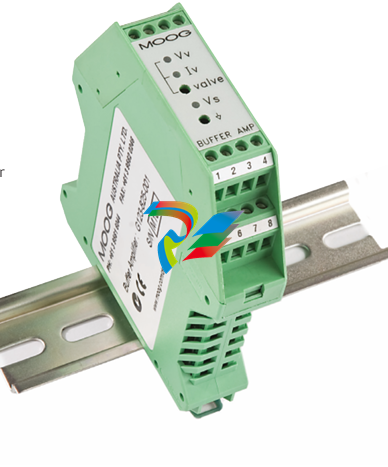 MOOG G123-825-001 BUFFER AMPLIFIER
 -
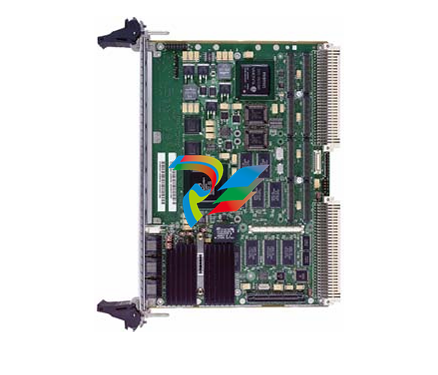 Motorola MVME5100 Series VME Processor Modules
 -
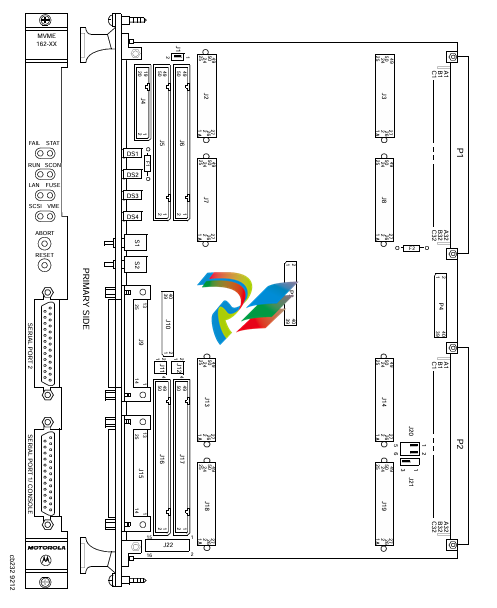 Motorola MVME162 Embedded Controller
 -
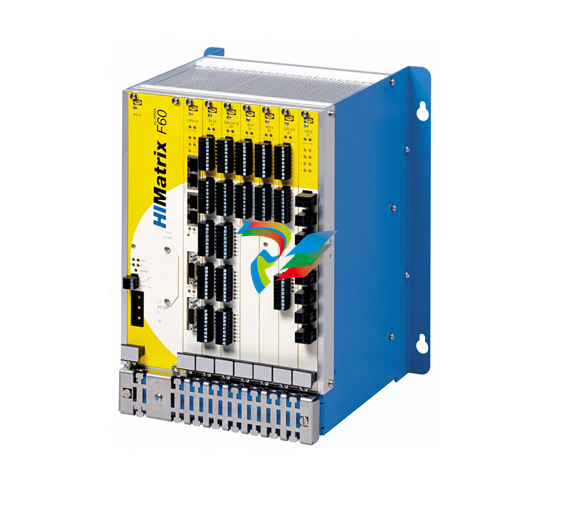 HIMatrix Safety-Related Controller System Manual for the Modular Systems
 -
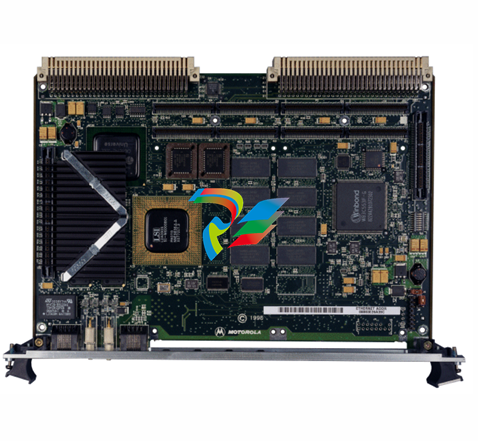 Motorola MVME2400 Series VME Processor Module
 -
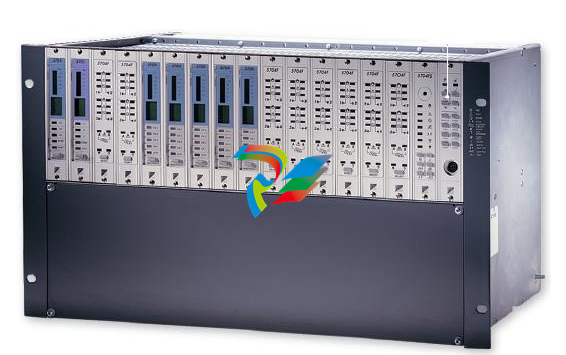 Sieger System 57
 -
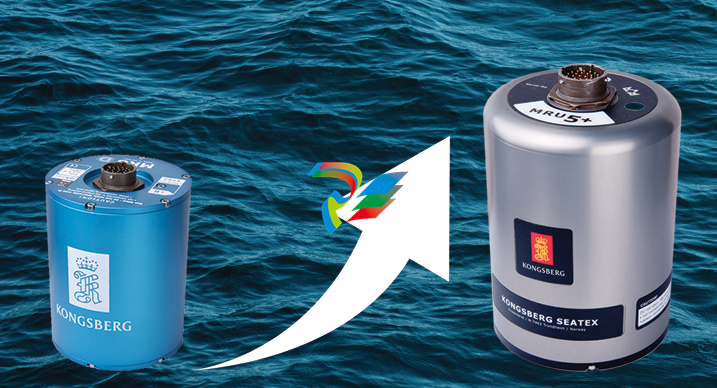 KONGSBERG MRU product line continuation
 -
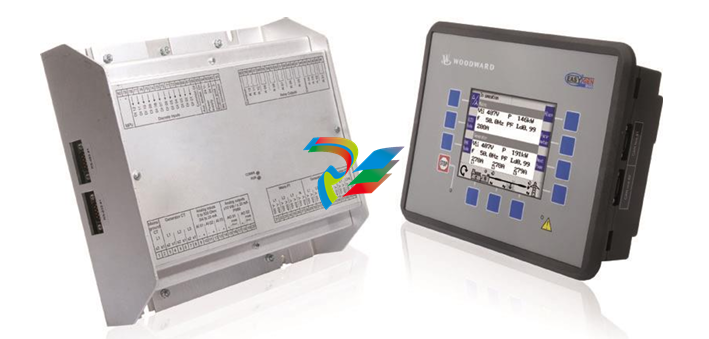 Woodward easYgen-3100/3200 Genset Control for Multiple Unit Operation
 -
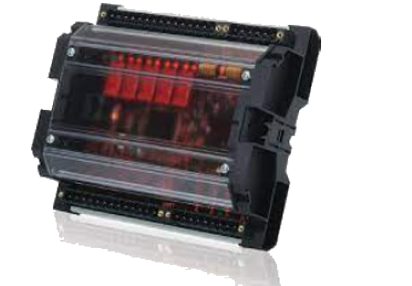 Woodward MFR 300 Multifunction Relay / Measuring
 -
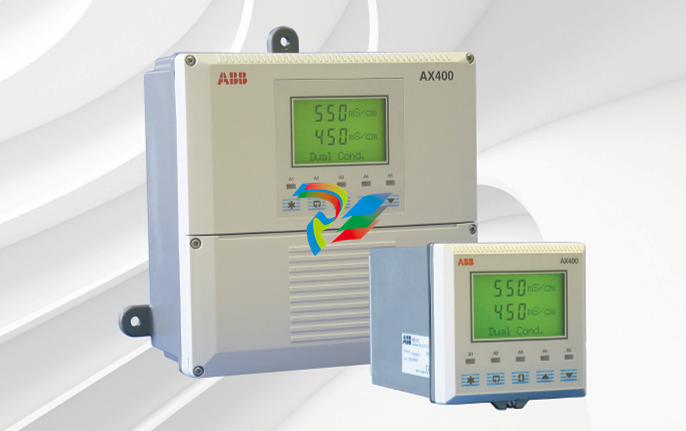 ABB AX410, AX411, AX413, AX416, AX418, AX450, AX455 and AX456 Single and dual input analyzers for low level conductivity
 -
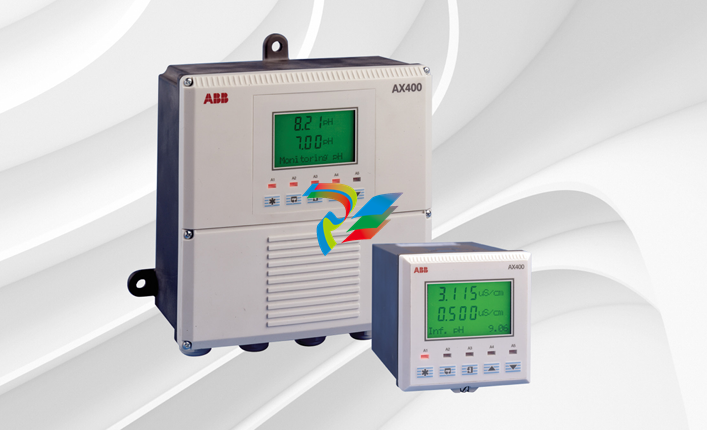 ABB AX410, AX411, AX416, AX450 and AX455 Single and dual input analyzers
 -
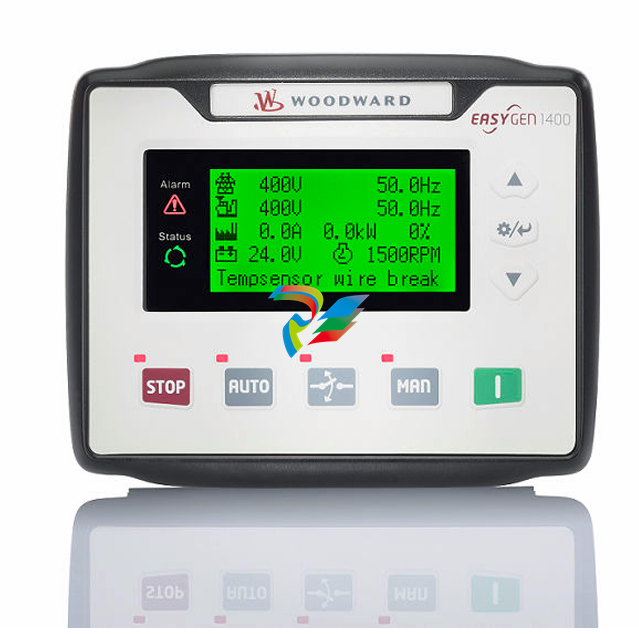 Woodward easYgen-1400 Technical Manual Genset Control
 -
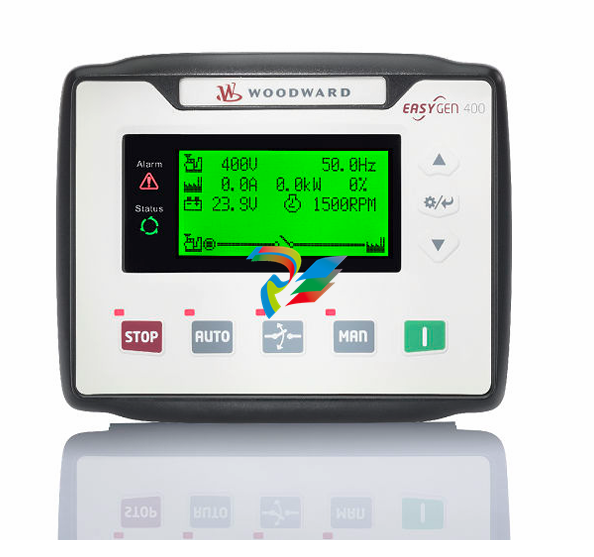 Woodward easYgen-400 Operation Manual Genset Control
 -
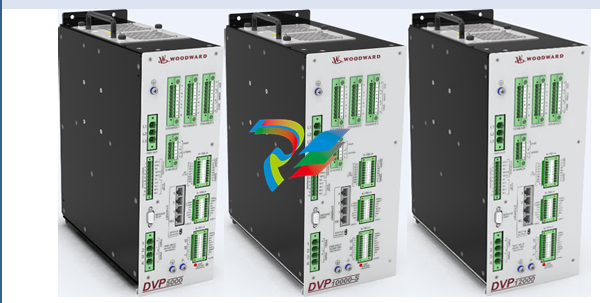 Woodward High Output Digital Valve Positioner (DVP)DVP5000/DVP10000/DVP12000
 -
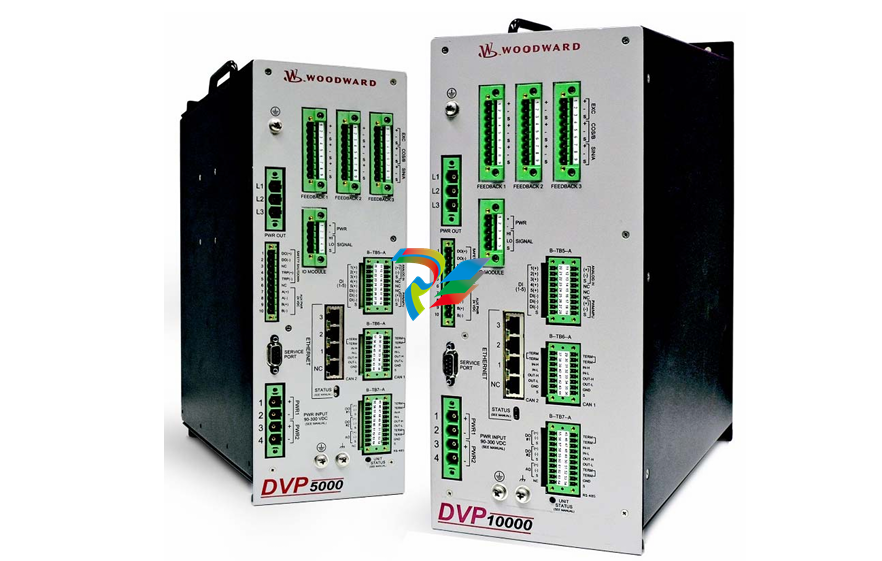 Woodward High Output Digital Valve Positioner DVP5000 and DVP10000
 -
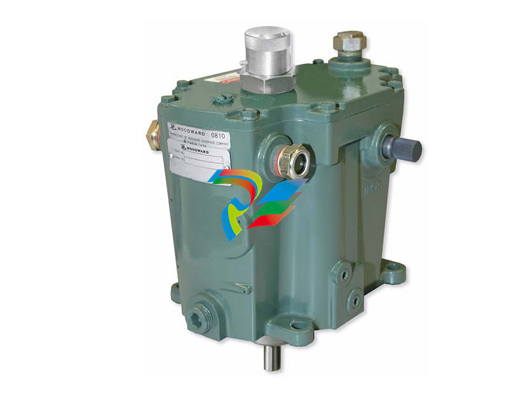 Woodward TG611-13/-17 Overspeed Test Device Conversion Kit
 -
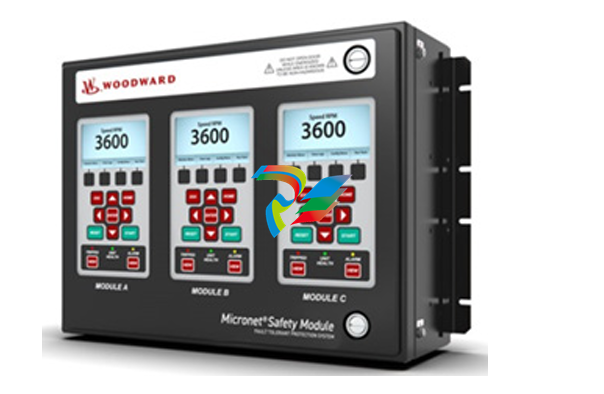 Woodward MicroNet Safety Module (MSM)
 -
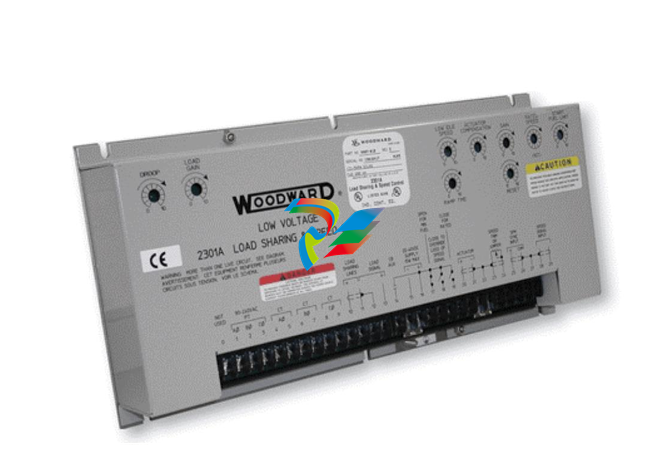 Woodward 2301A Electronic Load Sharing and Speed Control 9905/9907 Series
 -
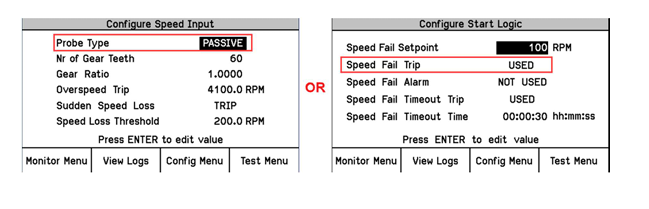 Woodward-Service Bulletin 01671
 -
 UniOP eTOP40B 12.1” TFT color display
 -
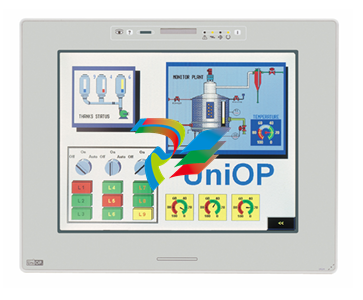
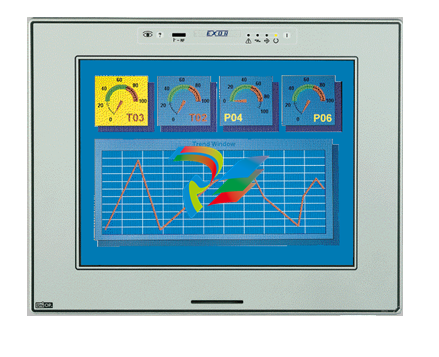 UniOP eTOP40 TFT Color display
 -
 UniOP eTOP33B 10.4” TFT color display
 -
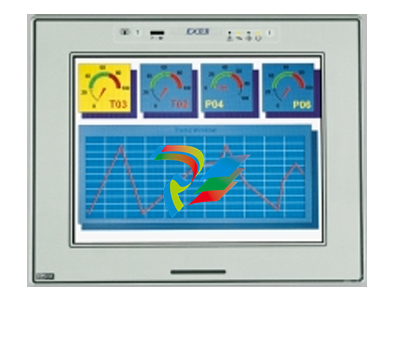 UniOP eTOP33C eTOP33-0050 Resistive touchscreen
 -
UniOP eTOP30. eTOP32 eTOP32-0050 Human-machine interface equipment
-
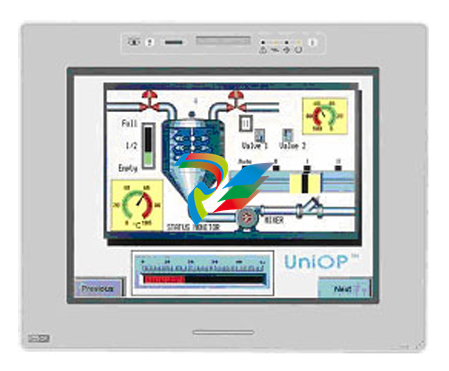 UniOP eTOP20B and eTOP21B eTOP20B-0050
 -
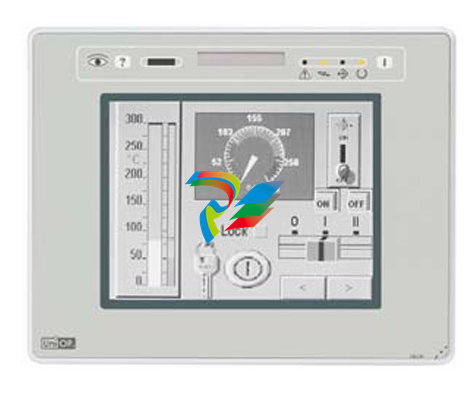 UniOP eTOP12 eTOP12-0050 Advanced human-machine interface equipment
 -
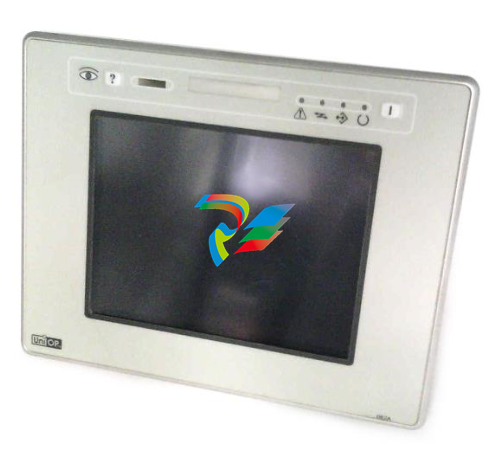 UniOP eTOP11 eTOP11-0050 HMI
 -
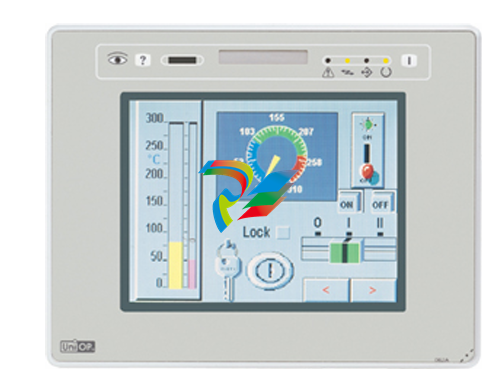 UniOP eTOP06C HMI
 -
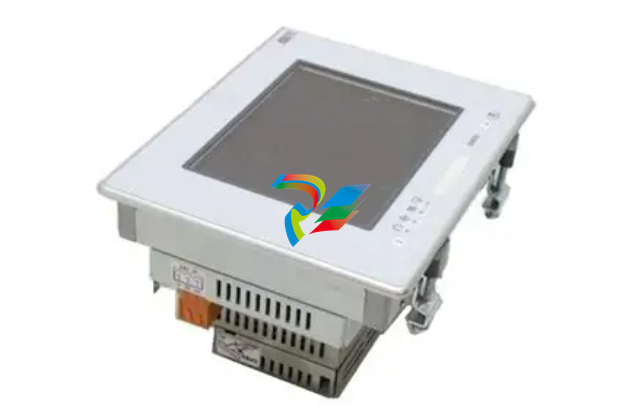 UniOP eTOP06 HMI
 -
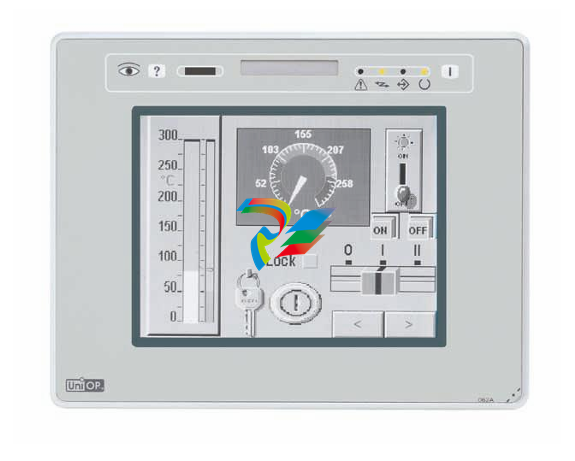 UniOP eTOP05EB eTOP05EB-DF45 HMI
 -
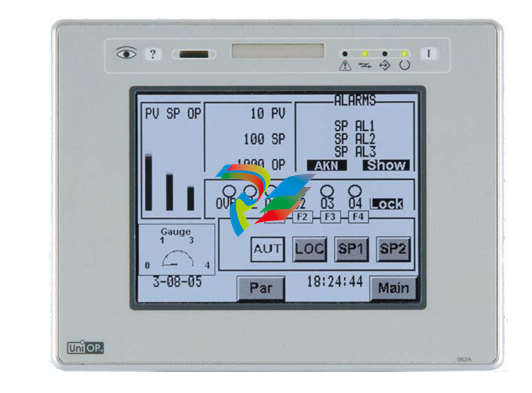 UniOP eTOP05. eTOP05P Human-machine interface equipment
 -
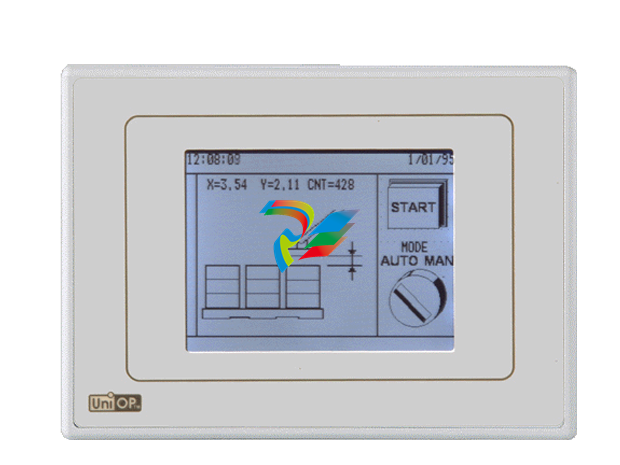 UniOP eTOP03 eTOP03-0046
 -
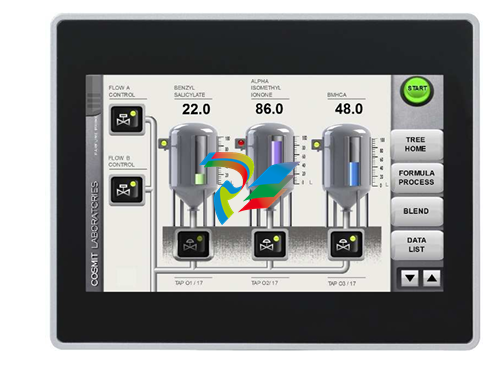 UniOP eTOP507 507U2P1 eTOP Series 500 Human-Machine Interface
 -
 UniOP eTOP307
 -
 UniOP ETT-VGA Human-machine interface touch unit
 -
 UniOP ePAD32B, ePAD33B and ePAD33BT ePAD33B-0350
 -
 UniOP ePAD05 and ePAD06
 -
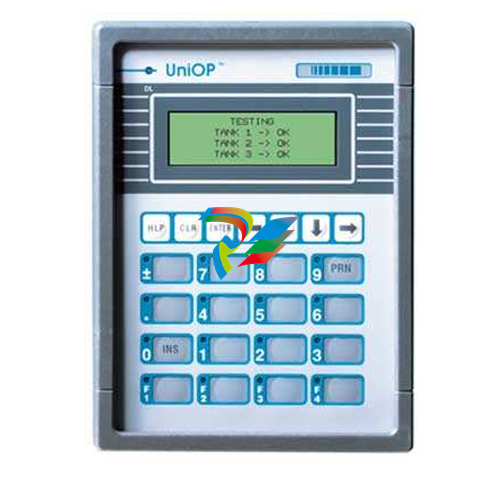 UniOP CP02R-04 Human-machine interface
 -
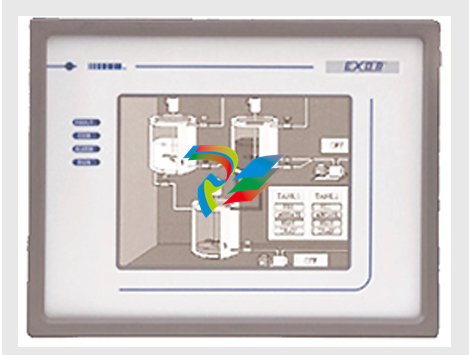 UniOP ERT-16 - Industrial PLC Workstation
 -
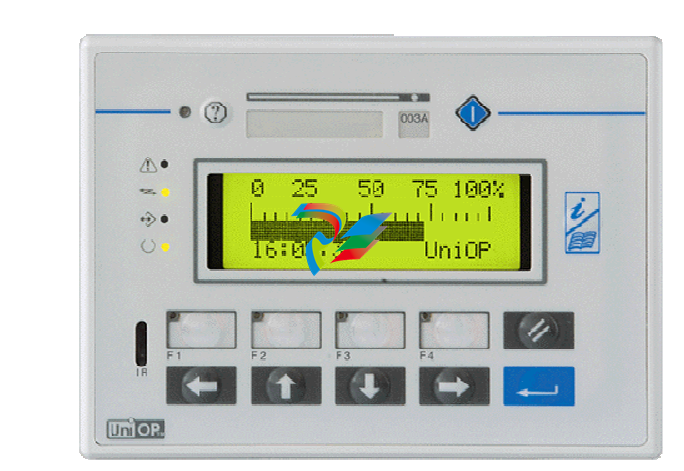 UniOP ePAD03 and ePAD04
 -
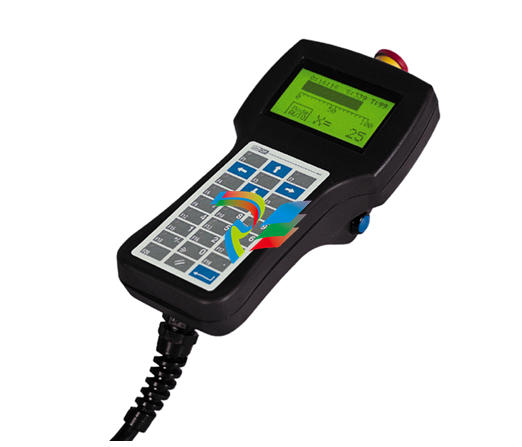 UNIOP EPALM10-DA71 state-of-the-art handheld HMI
 -
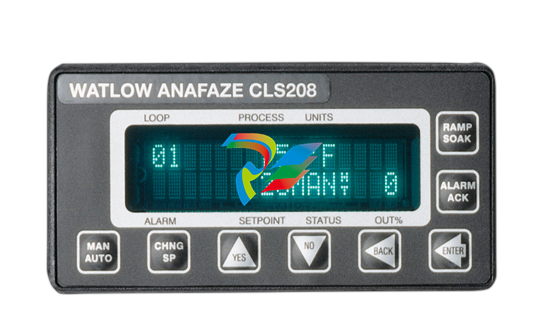 Watlow SERIES CLS200 SPECIFICATION SHEET
 -
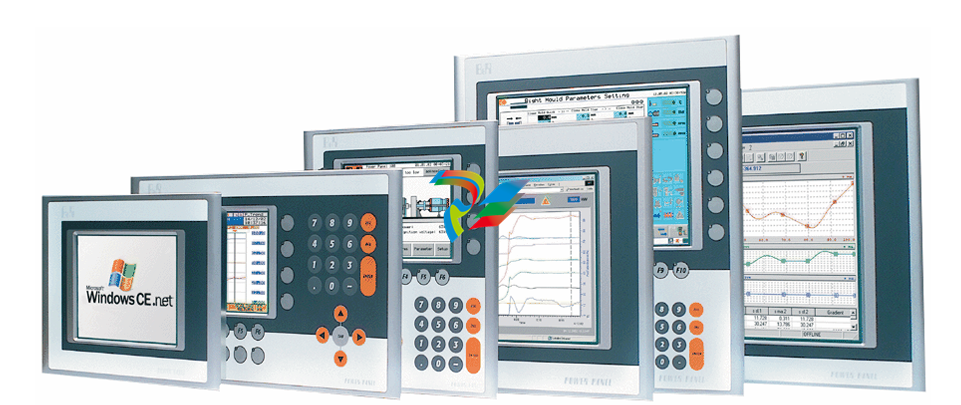 Detailed Explanation of B&R Power Panel 300/400: The Core of Industrial Automation Control
 -
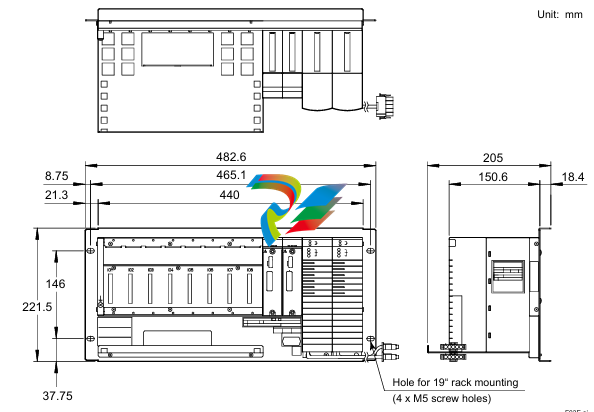 YOKOGAWA Models ANB10S, ANB10D, ANR10S, ANR10D Node Units (for FIO)
 -
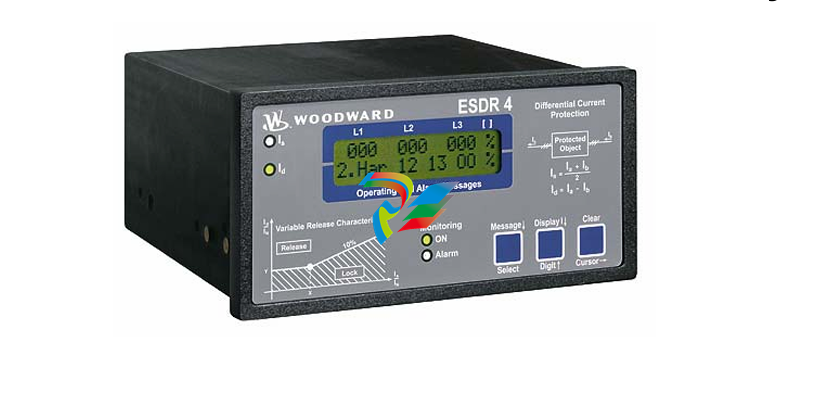 Woodward ESDR 4 Current Differential Protection Relay
 -
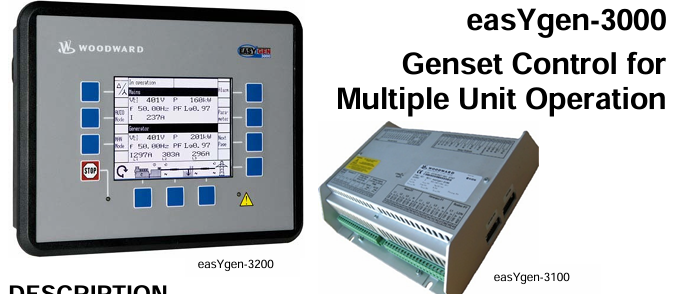 Woodward easYgen-3000 Genset Control for
 -
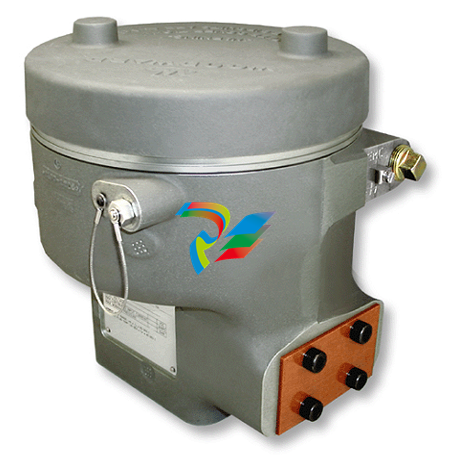 Woodward CPC-II Current-to-Pressure Converter
 -
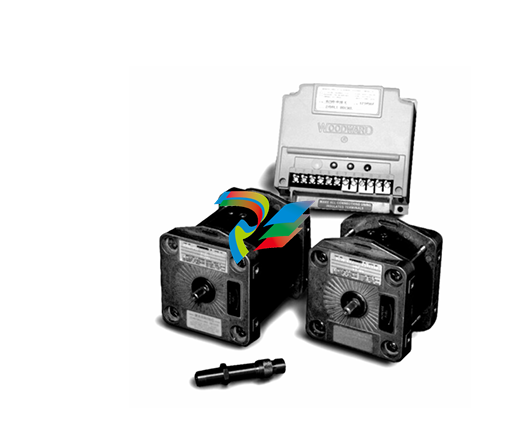 Woodward 8290-189-EPG-installation-manual 8290-044
 -
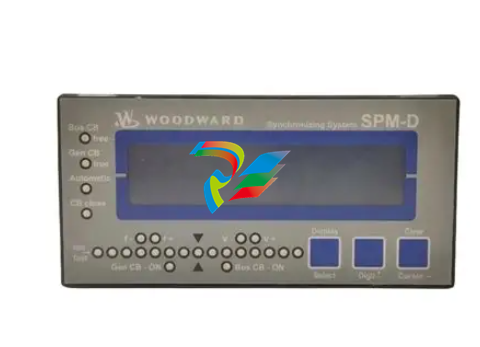 Woodward Product Change Notification 06946A
 -
 Woodward Product Change Notification 06912